Home / Web chat / Add it to your website
Setup guide · about 5 minutes
Add the chat to your website in one line.
Copy one line of code from your Setup page and paste it into your website. Here's where it goes in the most common website builders.
Builder steps were checked against each builder's own help page on October 7, 2026. Menus change, so each one links to its source.
The short version
Three steps on any website
Copy your line
Log in, open Setup, and copy the line under "Web chat for your website". It starts with
<script.Paste it near the end of every page
Most builders have a "custom code" or "footer code" box that does this for the whole site. In plain HTML, put it just before
</body>. Steps for your builder are below.Publish and test
Open your live site, tap the button, send a test message, and look for it in your lead inbox.
By website builder
Where the line goes
WordPress
Use a header-and-footer code plugin such as WPCode (formerly "Insert Headers and Footers"). After installing it, open the Code Snippets menu and paste the line into the footer box.
Source: WPCode plugin page
Wix
Go to Settings, then Custom Code, then + Add Custom Code. Paste the line, choose All pages, and place it in Body – end. Wix says the site must be published and have a connected domain.
Source: Wix help
Squarespace
Open the Code Injection panel (under Website Tools) and paste the line into the Footer field, then save. Squarespace says code injection is available on its Core, Plus and Advanced plans and some older plans.
Source: Squarespace help
Shopify
In your Shopify admin go to Online Store, click the three-dot menu next to your theme, and choose Edit code. Open theme.liquid and paste the line just before </body>.
Source: Shopify help
Plain HTML or a web person
Paste the line just before the closing </body> tag on every page, or send this page to whoever looks after your website. It takes them a few minutes.
Another builder
Search your builder's help for "custom code", "footer code" or "embed code". If it only allows code on some plans, the form link from your Setup page works without touching your website.
What the line looks like
One line, your own key
<script src="https://newfrontdesk.com/widget.js" data-business="nfd_your-key-here" async></script>
- The key after
data-businessis different for every business. Use the line from your own Setup page, not this example. - Add
data-open="1"to open the chat straight away, for example on a Contact page. - It loads after your page, sets no cookies and does no tracking.
Questions
Setup questions
Where do I get my line of code?
In your NewFrontDesk account, on the Setup page, under "Web chat for your website". Each business has its own line. Accounts are set up by us for now; there is no public sign-up yet.
How do I know it worked?
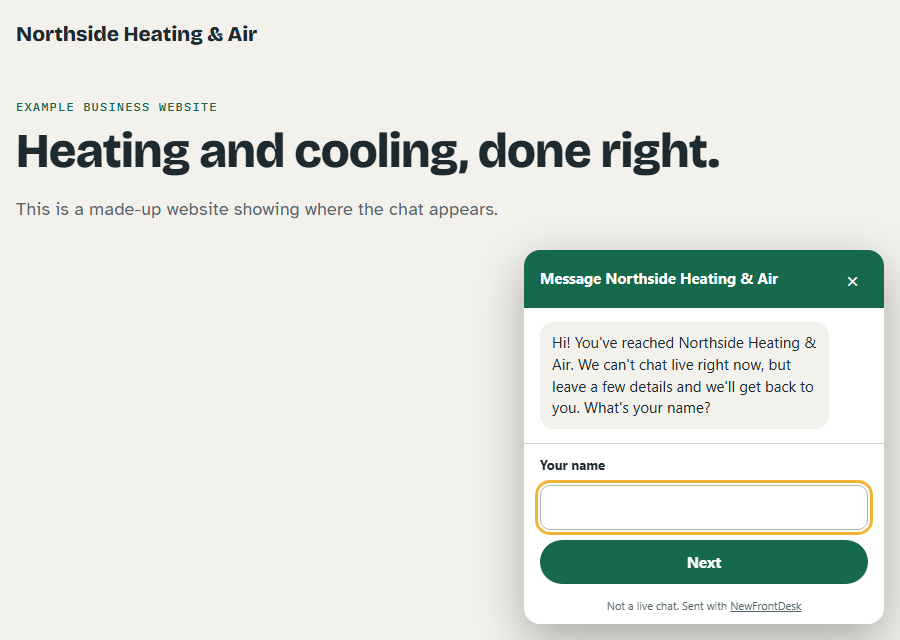
Open your website in a new tab. A button appears in the bottom corner. Send yourself a test message and check that it shows up in your lead inbox.
It doesn't show up. What should I check?
Make sure the code is on the live site and not only in a draft, that you pasted the whole line, and that it sits near the end of the page. If your site has a strict security setting that blocks outside scripts, your web person needs to allow newfrontdesk.com.
Can I change the colour or the words on the button?
Yes. On the Setup page you can pick the button colour, the words on it, which corner it sits in, your opening hours, and what it says when you're closed. You don't need to change the code on your website for any of that.
I don't have a website. Can I still use it?
Yes. You get a form link that does the same job. Share it by text or email, or put it in your Google Business Profile.
Does it work on every website builder?
It works anywhere you can add a line of custom code. Some builders only allow that on paid plans; the notes above say what each builder's own help page states.
Didn't find your answer? Write to [email protected], or see how it works.
Ready when you are.
Request setup now. No payment is taken until the features in your plan work.
One practical guide a week.
Short, plain guides for local businesses on missed calls, follow-up and leads. No sales emails. Read the guides.